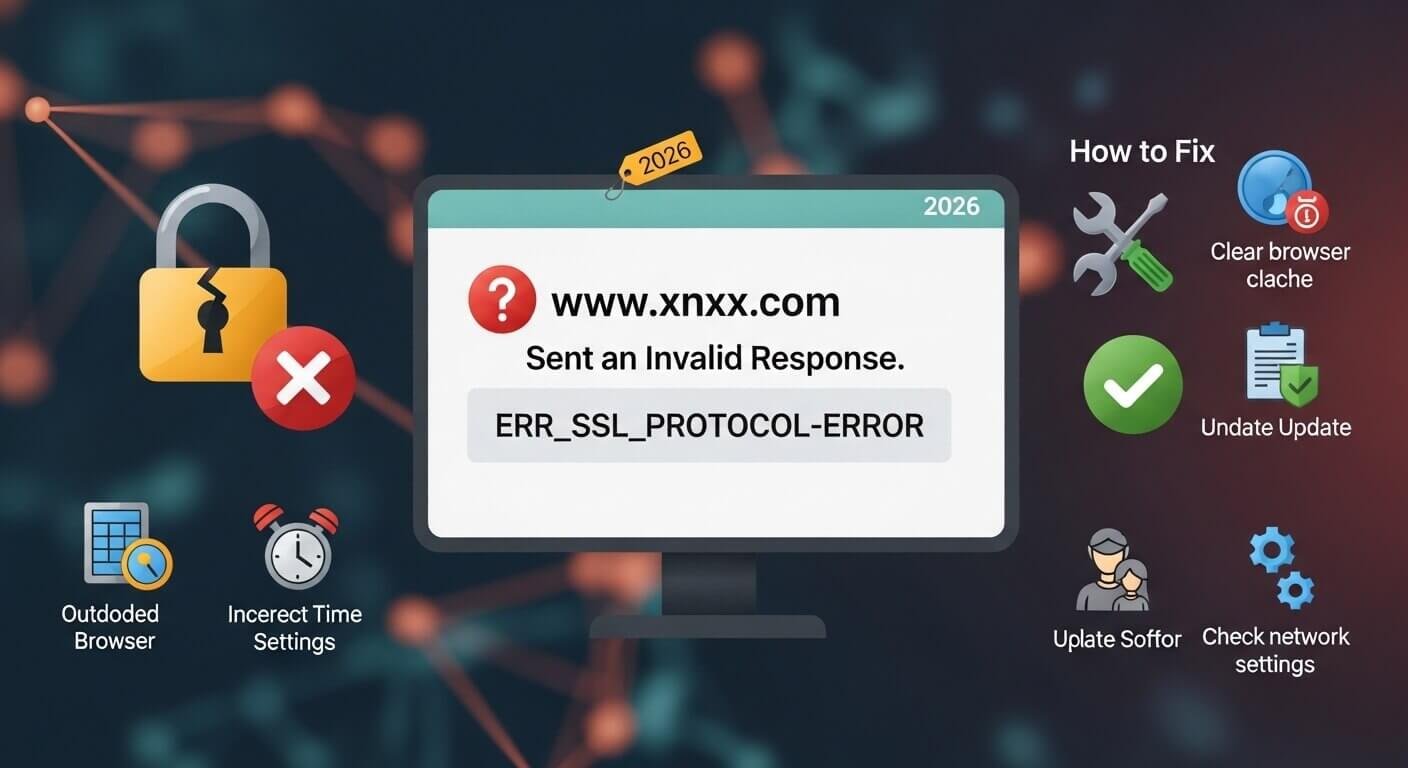
Quick Answer First
You’re getting this message: “www.xnxx.com sent an invalid response. ERR_SSL_PROTOCOL_ERROR.”
This means your browser tried to open a secure, encrypted connection to the website — and something blocked it before it could finish. It’s not always the website’s fault. It’s often something on your own device.
Here’s the fast version of what fixes it:
| Who You Are | Start Here |
|---|---|
| Regular visitor | Fix your device’s date and time first |
| Using a VPN or Proxy | Turn it off and try again |
| On a work or school network | ISP or DNS may be blocking the site |
| Website owner | Check certificate expiry at ssllabs.com |
Now let’s go deeper — step by step, plain and simple.
What This Error Actually Means
Every time you open a website with HTTPS, your browser does a secret handshake with the server. They quickly agree on security rules, verify who each other is, and then exchange their data safely.
The ERR_SSL_PROTOCOL_ERROR means that the handshake broke down. They couldn’t agree. The connection stopped before it even started.
Think of it like calling someone on the phone. The call connects, but you both start talking at the same time and can’t understand each other. So the call drops. That’s what this error is.
Your browser shows you this warning message instead of loading the page. It does this to protect you — not to annoy you.
Why This Specific Error Happens on Adult Sites More Often
This is something every other guide ignores. Here’s the truth.
Adult websites like this one are more likely to trigger ERR_SSL_PROTOCOL_ERROR for reasons that have nothing to do with the site’s SSL certificate.
- Reason 1 — Your ISP is blocking the domain at the DNS level. Many internet service providers silently block adult content. They don’t show you a “blocked” page. Instead, the DNS lookup fails or redirects, and your browser interprets it as a broken SSL handshake. The result: you see ERR_SSL_PROTOCOL_ERROR instead of a proper block page.
- Reason 2 — Your router has Safe Search or Parental Controls turned on. Home routers from some ISPs come with content filtering enabled by default. This can intercept HTTPS traffic and cause SSL errors.
- Reason 3 — Your Windows Hosts file may have an entry blocking the domain. Parental control software, antivirus tools, or even another user on your device may have added an entry that redirects this domain to 127.0.0.1 — your own computer. Your browser then gets a response from your own machine, which has no SSL certificate for that domain, and throws this error.
- Reason 4 — Your DNS server filters adult content. If your router uses Google’s Family-safe DNS (8.8.8.8 with filtering) or Cloudflare’s family DNS (1.1.1.3), adult domains are blocked at the DNS level and cause SSL errors.
None of the other guides mentions these four reasons. But for this specific error on this specific type of site, these are the most likely causes.
How to Diagnose It in 60 Seconds
Before you start fixing things randomly, do this quick test first. It saves a lot of time.
- Test 1 — Phone test. Open the site on your phone using mobile data, not Wi-Fi. If it loads fine on your phone, the problem is your computer or your home network. If it also fails on mobile data, the problem is either the website itself or your mobile ISP blocking it.
- Test 2 — Different browser test. Try opening the same URL in Firefox or Edge. If it works in one browser but not another, the problem is browser-specific — corrupted cache, a bad extension, or outdated settings.
- Test 3 — Incognito test. Open an incognito window in Chrome (Ctrl + Shift + N). Try the site. If it works in incognito, a browser extension is causing the error. They’re disabled in incognito by default.
- Test 4 — VPN test. If you have a VPN, turn it on and try a different country. If the site loads through the VPN, your ISP or DNS is blocking it.
Know your test result? Now go to the matching fix below.
Fix 1 — Check Your Device’s Date and Time
This is the single most common cause of any SSL error. And it’s the easiest fix.
SSL certificates have an expiry date. Your browser checks that date against your device’s clock. If your clock is wrong — even by a few hours in the wrong timezone — the browser thinks the certificate is expired. It blocks the connection.
- Windows: Click the clock in the bottom right corner → Open date and time settings → Turn on “Set time automatically” and “Set timezone automatically.” Restart Chrome.
- Mac: System Settings → General → Date & Time → Turn on “Set automatically.”
- Android: Settings → General Management → Date and Time → Automatic date and time → On.
- iPhone: Settings → General → Date & Time → Set Automatically → On.
After fixing the time, restart your browser and try the site again.
Fix 2 — Clear Your Browser Cache and SSL State
Your browser stores old website data to load pages faster. But if that stored data is from an older version of the site’s SSL certificate, it can clash with the new one.
- Clear cache in Chrome: Press Ctrl + Shift + Delete (Windows) or Cmd + Shift + Delete (Mac). Set the time range to “All time.” Check “Cookies and other site data” and “Cached images and files.” Click “Clear data.” Restart Chrome.
- Clear SSL State (Windows only — this is a hidden fix most guides mention but don’t explain clearly): Type “Internet Options” in your Windows search bar. Open it. Go to the Content tab. Click “Clear SSL State.” Click OK. Restart Chrome completely.
The SSL State is a separate cache from your browser cache. It stores remembered handshake information. Clearing it forces Chrome to do a completely fresh handshake with the server.
Fix 3 — Turn Off Browser Extensions (Especially VPNs and Ad Blockers)
Extensions run between your browser and the website. Some intercept HTTPS traffic. When they do that incorrectly, the SSL handshake breaks.
The most common culprits: VPN extensions, ad blockers, security extensions, privacy tools.
Go to chrome://extensions/ and toggle every single extension off. Then try the website. If it loads, you found the problem. Turn extensions back on one at a time until the error comes back. That last one you turned on is your culprit — keep it off or replace it.
Fix 4 — Disable QUIC Protocol in Chrome
QUIC is Chrome’s fast connection method. It works great for most sites. But some servers and networks don’t support it properly. When QUIC fails, Chrome sometimes throws an ERR_SSL_PROTOCOL_ERROR instead of falling back gracefully.
Type this exactly into your Chrome address bar: chrome://flags/#enable-quic
You’ll see “Experimental QUIC Protocol.” Change the dropdown from Default to Disabled. Click “Relaunch” at the bottom. Try the site again.
Fix 5 — Disable Antivirus HTTPS Scanning
Antivirus software loves to scan your HTTPS traffic. It’s trying to protect you. But sometimes it intercepts the SSL connection incorrectly and breaks it.
Common antivirus tools that cause this: Kaspersky, Avast, AVG, ESET, Bitdefender. Look inside your antivirus settings for anything called “HTTPS scanning,” “SSL filtering,” or “Web shield.” Temporarily turn it off. Test the site. If it works, the antivirus is the problem. You can whitelist the specific domain inside your antivirus settings instead of turning the feature off permanently.
Fix 6 — Check Your Windows Hosts File (The Hidden Fix)
This one causes the error on specific websites only — never on other sites. If that sounds like what you’re experiencing, this is worth checking.
Open File Explorer. Go to: C:\Windows\System32\drivers\etc
Open the file called “hosts” with Notepad (right-click → open with → Notepad). Look for any line that contains the domain name you’re trying to visit. If it exists, it might be redirecting that domain to 127.0.0.1 or another address, which breaks SSL. Delete that line. Save the file. Restart your browser.
If you can’t edit the file, right-click Notepad → Run as administrator → then open the file from inside Notepad.
Fix 7 — Change Your DNS Server
This fixes the problem when your ISP or router’s DNS is blocking the domain or returning the wrong address.
Windows: Go to Settings → Network & Internet → Change adapter options → Right-click your connection → Properties → Internet Protocol Version 4 → Use the following DNS server addresses:
Preferred: 8.8.8.8 Alternate: 8.8.4.4
(Those are Google’s public DNS servers. They don’t filter adult content by default.)
- Mac: System Settings → Network → Your connection → DNS → Click + and add 8.8.8.8 and 8.8.4.4.
- After changing DNS: Open Command Prompt as administrator and type: ipconfig /flushdns — then press Enter. Restart your browser.
Fix 8 — Update Your Browser
Old browsers don’t support TLS 1.3, which is what modern servers use. If your Chrome, Edge, or Firefox is outdated, it literally can’t complete the handshake.
Chrome: Three dots → Help → About Google Chrome → It auto-updates. Restart after.
Firefox: Three lines → Help → About Firefox → Auto-updates. Restart after.
This takes two minutes and fixes the problem permanently for protocol-mismatch errors.
Fix 9 — Try a Different Network or VPN
If you’ve tried everything above and nothing works, try this. Connect to a different Wi-Fi network — a café, a friend’s house, or your mobile hotspot. If the site works there, your home ISP or router is blocking it.
You can fix this by changing your router’s DNS settings to 8.8.8.8 (Fix 7 above covers this). Or you can use a reputable VPN service to bypass the ISP restriction.
What This Error Looks Like on Different Browsers
A lot of people don’t realize that the same underlying problem shows different messages depending on your browser. Here’s the translation:
| Browser | Error Message You See | What It Actually Means |
|---|---|---|
| Chrome | “This site can’t provide a secure connection. ERR_SSL_PROTOCOL_ERROR” | SSL handshake failed |
| Edge | “Can’t connect securely to this page. The site may be using outdated TLS security settings.” | Same problem, slightly different wording |
| Firefox | “Secure Connection Failed — SSL_ERROR_RX_MALFORMED_HANDSHAKE” | Same problem — Firefox just gives more technical details |
| Safari | “Safari Can’t Open the Page” | Safari doesn’t show a formal SSL error code |
If you’re seeing any of these, the fixes in this guide apply to all of them.
Complete Fix Checklist
Work through this top to bottom. Stop when your problem is solved.
- Fix your device date and time — set it to automatic
- Clear browser cache and cookies (all time range)
- Clear SSL State in Chrome (Windows: Internet Options → Content tab)
- Open incognito and test — if it works, it’s an extension
- Disable all extensions, test, re-enable one by one
- Disable antivirus HTTPS/SSL scanning temporarily
- Disable QUIC protocol at chrome://flags/#enable-quic
- Check your Windows Hosts file for a blocked domain entry
- Change your DNS to 8.8.8.8 and flush DNS with ipconfig /flushdns
- Try the site on mobile data — if it works, your ISP or router is blocking it
- Update your browser to the latest version
- Try a VPN if ISP blocking is confirmed
Frequently Asked Questions
Why does this error only appear on specific websites and not others?
That’s actually the most important clue. When the error only appears on one or two specific sites, it usually means one of three things. The site’s SSL certificate has an issue. Or your Hosts file has an entry blocking that specific domain. Or your ISP/DNS is filtering that specific domain. Run the incognito test and the phone test first — those two tests will tell you exactly where the problem is.
My date and time are correct, but the error still shows — why?
The correct date and time are just one of many causes. Move on to Fix 2 (clear cache) and Fix 3 (extensions). The most commonly missed fix is the Hosts file (Fix 6). It causes this exact pattern — correct time, but still gets the error on one specific site.
Does using a VPN fix ERR_SSL_PROTOCOL_ERROR?
Sometimes yes, sometimes no. A VPN fixes the error when the cause is ISP or DNS blocking, because the VPN routes your traffic around the ISP’s filter. But a VPN won’t fix the error if the cause is your browser cache, wrong date/time, or a browser extension. In those cases, a VPN makes no difference.
Is it safe to visit a site that shows this error?
Your browser is protecting you by showing this error. If you see it on a bank, a shopping site, or any site where you’d enter personal information, do not proceed. The SSL protection is not working. For sites where you don’t enter any personal data, the risk is lower. But the safest move is always to fix the root cause first.
Why do I get this error at home but not on mobile data?
This almost always means your home ISP or router is blocking or filtering the domain. Your mobile carrier uses a completely separate DNS and routing. To fix this at home, change your DNS server to 8.8.8.8 (Google DNS) in your router or device settings. That usually resolves it immediately.
Can this error mean the website itself is down?
Sometimes. If the site’s SSL certificate has genuinely expired, or if the server’s SSL configuration has a bug, every visitor will get this error — not just you. If the phone test (Fix step 1 in diagnostics) fails on mobile data too, the problem is more likely on the website’s end. You can verify by checking the domain at ssllabs.com/ssltest/ — it will show you instantly whether the certificate is valid.
Will clearing my browser cache delete my passwords?
No — if you clear only “Cached images and files” and “Cookies,” your saved passwords are not affected. Passwords are stored separately under “Passwords” in Chrome. You can clear cache and cookies without touching your saved login information.
This error appeared after I updated Chrome — is that why?
Yes, this happens. Chrome updates often include stricter SSL enforcement. A website that worked with an older Chrome may now fail because it still uses TLS 1.0 or 1.1, which newer Chrome versions completely block. In that case, the fix is on the website’s server — not your browser. Contact the website owner or use a different browser temporarily.
Final Word
The ERR_SSL_PROTOCOL_ERROR on “www.xnxx.com sent an invalid response” is almost always fixable on your own. Most cases are solved by fixing the device date/time, clearing the browser cache, or turning off a conflicting extension. The unique causes specific to this type of site — ISP filtering, DNS blocking, Hosts file entries — are easy to check once you know they exist.
Work through the checklist above in order. You’ll find your answer within the first four or five fixes in almost every case.