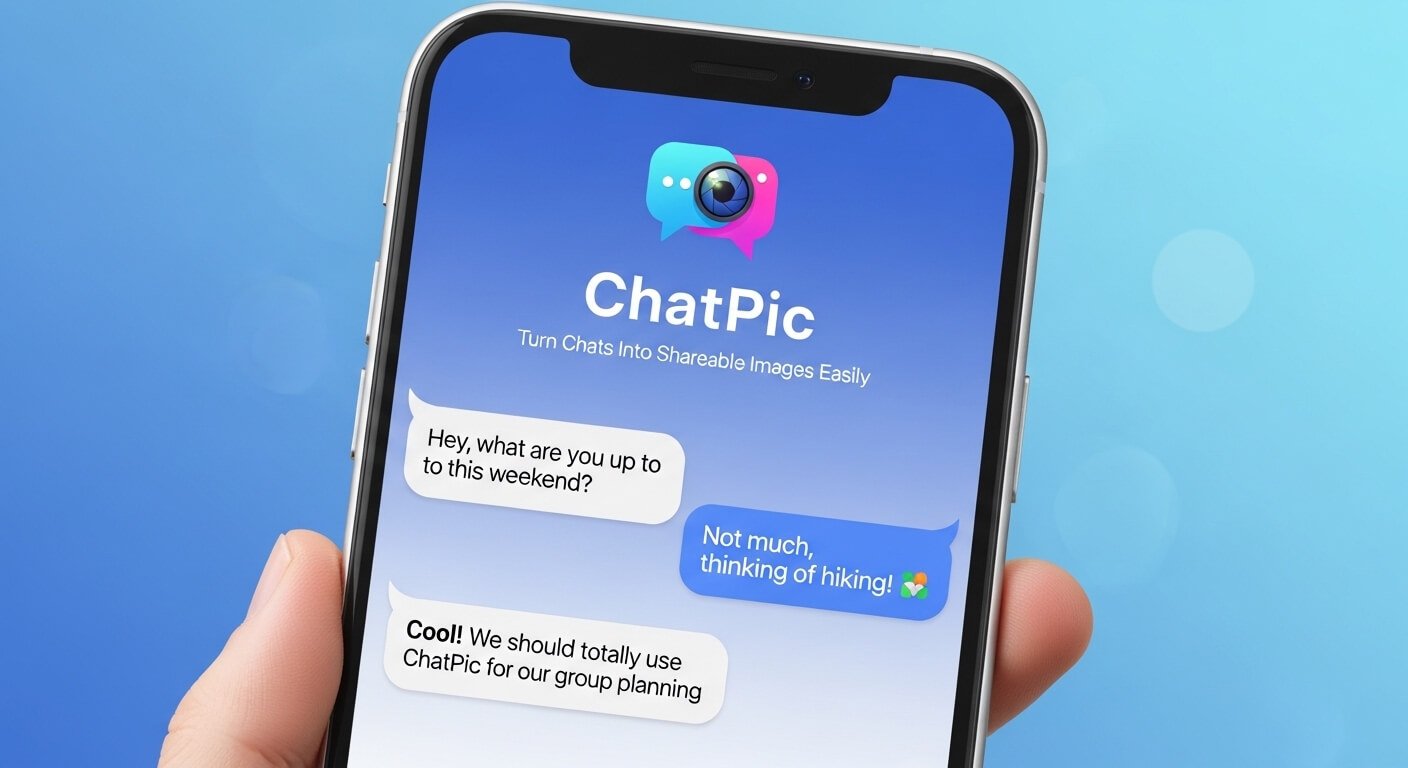
Introduction — Why ChatPics matter today
Have you ever wanted to share a short chat—an idea, a funny reply, or a customer testimonial—in a way that looks polished and gets attention? That’s where ChatPic comes in. It converts chat conversations into image cards that are easy to share on social feeds, blogs, or presentations.
In this article, you’ll learn what ChatPic is, why people use it, how it works step-by-step, and smart ways to use it for engagement, credibility, and visual storytelling. Expect practical tips, real examples, and a simple checklist you can use in under 10 minutes.
What is ChatPic?
ChatPic is a tool (or feature set) that turns text-based chat conversations into designed image snippets. These images can mimic chat bubbles, show avatars, or present the exchange as a polished graphic suitable for Instagram, Twitter/X, blogs, or newsletters.
ChatPic converts chat into shareable visual content, preserving context while improving readability and shareability.
Who uses ChatPic and why?
-
Content creators turn Q&A or DMs into shareable posts.
-
Marketers highlight testimonials and product feedback.
-
Support teams share short success stories or fixes.
-
Educators display student Q&A or micro-lessons.
-
Journalists present quotes or verified chat excerpts visually.
Each use case answers a different user intent: shareability, credibility, visual engagement, or archival.
Core benefits of ChatPic (What, why, and how it helps)
-
Readability: Images condense text into scannable visuals.
-
Shareability: Social platforms favor images for engagement.
-
Context control: Designers can remove private data or add context.
-
Branding: You can add logos, colors, and CTAs.
-
Preservation: Images preserve formatting across platforms.
How ChatPic works: step-by-step walkthrough
Below is a typical workflow most ChatPic tools follow. Expect small differences by app, but the core steps remain the same.
Step 1 — Input the chat
You paste text, upload a screenshot, or connect a chat source (e.g., an exported conversation). Most tools accept plain text or structured export formats.
Step 2 — Choose a layout
Pick a template: single bubble, two-column chat, phone mockup, or minimalist card. Templates set font, spacing, and bubble style.
Step 3 — Edit and anonymize
Remove names, blur sensitive info, or replace real names with initials. Add clarifying context like “(edited for brevity)” when necessary.
Step 4 — Brand and style
Apply brand colors, add logos, or select fonts. This keeps visuals consistent with your identity.
Step 5 — Export and share
Export as PNG, JPEG, or SVG. Some tools also offer direct social sharing or scheduling.
Examples that work (realistic scenarios)
Example 1: Testimonial highlight
A small brand converts a short user DM praising a feature into a branded ChatPic and posts it to Instagram Stories, resulting in higher saves and replies than text-only posts.
Example 2: Customer support showcase
A support team shares an anonymized chat showing a quick resolution—great for demonstrating responsiveness on LinkedIn.
Example 3: Micro-tutorials
An educator posts a short step-by-step chat exchange as a visual micro-lesson that students can screenshot.
Design best practices for ChatPics
Keep it short
Only show the essential lines. Long chat images reduce engagement.
Use hierarchy
Make the key message bold or larger. Secondary lines should be smaller or lighter.
Add context
A one-line caption or small title helps readers understand the why behind the clip.
Accessibility
Add ALT text when posting so screen readers describe the image. Provide a short transcript in the caption when required.
Legal and ethical considerations
Consent and privacy
Always get consent before sharing private chats. For customer quotes, ask permission and offer to anonymize their details.
Authenticity
Avoid fabricating chats. If you edit for clarity, disclose “edited for brevity” or similar transparency.
Copyright
If the chat contains copyrighted content (e.g., song lyrics), check fair use and obtain any necessary permissions.
Security practices when using ChatPic tools
-
Check how the tool stores uploaded chats — prefer encrypted storage.
-
Use local exports instead of cloud uploads if your content is sensitive.
-
Be cautious with third-party integrations that request message access.
ChatPic: Does converting chat to images help?
Images themselves don’t pass text weight to search engines, but they can increase user engagement (time on page, shares), which indirectly helps SEO performance.
Tips to preserve value
-
Add a short transcript or summary below every ChatPic so search engines can index the text.
-
Use descriptive ALT text and image filenames (e.g., chatpic-support-resolution.png).
-
Provide schema markup (Article, ImageObject, or QAPage) for better indexing.
Tools and tool features to look for
Look for:
-
Easy anonymization controls.
-
Branded templates and export options.
-
Mobile-friendly previews.
-
Batch-processing for multiple chat images.
-
Local storage/export options for privacy.
Comparison: ChatPic vs raw screenshots vs text posts
-
Raw screenshots: Fast, but often messy and may reveal metadata.
-
Text posts: SEO-friendly but less likely to get visual engagement.
-
ChatPic images: Polished, brandable, and shareable; best when you need both design and privacy control.
Measuring success: KPIs and metrics
Track:
-
Engagement rate (likes, comments, shares).
-
Saves/bookmarks (content value indicator).
-
Click-throughs from image posts to your site.
-
Time on page when ChatPics appear in articles.
-
Conversion lift when ChatPic includes a product or call-to-action.
Create a ChatPic in 5 minutes (practical mini-guide)
-
Choose the chat lines you want to highlight (2–6 lines).
-
Paste into the ChatPic editor or upload a screenshot.
-
Select a template and brand colors.
-
Anonymize or edit for clarity.
-
Export and include a transcript in the caption.
Common mistakes to avoid
-
Oversharing private or identifying information.
-
Using too much text in the image.
-
Forgetting to add ALT text and transcripts.
-
Not asking for permission when required.
-
Relying on images alone for important, indexable content.
Future trends for ChatPic and conversational visuals
Expect smarter automations: auto-summarization, sentiment-aware styling, and tighter platform sharing features. Tools may soon suggest the best lines to highlight or auto-generate accessible transcripts.
Conclusion — Key takeaways
ChatPic is a practical, low-friction way to turn conversational text into visual, shareable, and branded content. Use it to spotlight testimonials, teach micro-lessons, or highlight support wins. Always prioritize consent, clarity, and accessibility: add transcripts and ALT text so everyone benefits. When used properly, ChatPics boost engagement without sacrificing trust.
FAQs
1. What is ChatPic used for?
ChatPic converts chat conversations into professionally designed images for social sharing, blog visuals, presentations, and promotional materials.
2. Are ChatPics good for SEO?
Images alone don’t help SEO, but pairing ChatPics with transcripts, ALT text, and contextual captions preserves indexable content and improves engagement metrics, indirectly benefiting SEO.
3. How do I protect privacy when sharing chats?
Always obtain consent, anonymize names and contact details, and avoid uploading highly sensitive data to third-party services.
4. Can ChatPics be automated at scale?
Yes — many tools offer batch export, templates, and simple automations. For high volume, choose a tool that supports API access or local processing.
5. Do ChatPics work on all social platforms?
Generally, yes—images are universally supported. Check platform image size and aspect ratio recommendations for best display.
6. What file format should I use for ChatPics?
PNG is best for sharp text and small file size; SVG works for vector outputs; JPEG can be used for photographic or photographic-like images.